HomeHow to order

How to Order?

We make placing an order with most simplest and easy way!!

Step 1

Select Your Color

Choose a color from the dropdown menu labeled “Color”.

Step 2

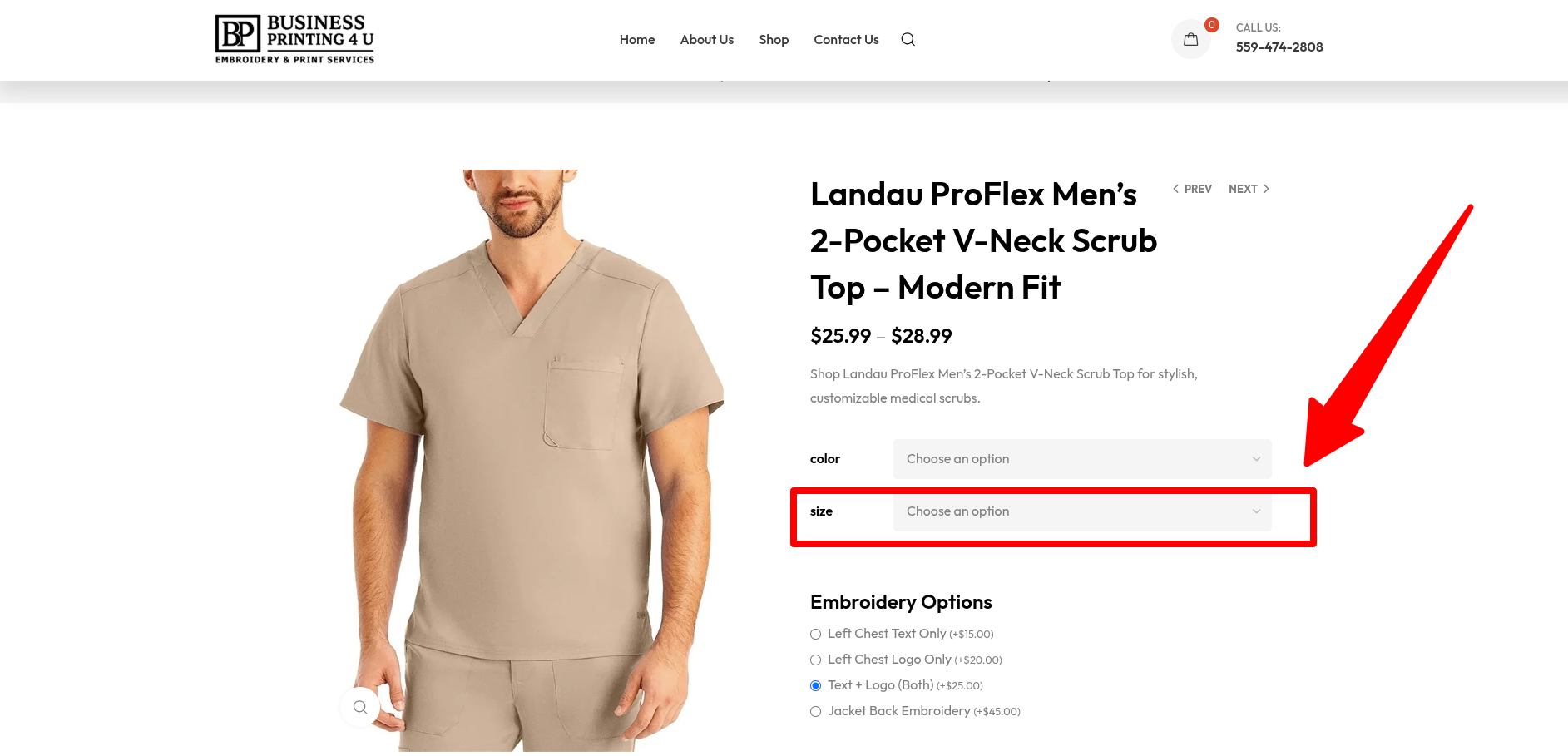
Select Your Size

After choosing your color, select your size from the dropdown menu labeled “Size”.

Step 3

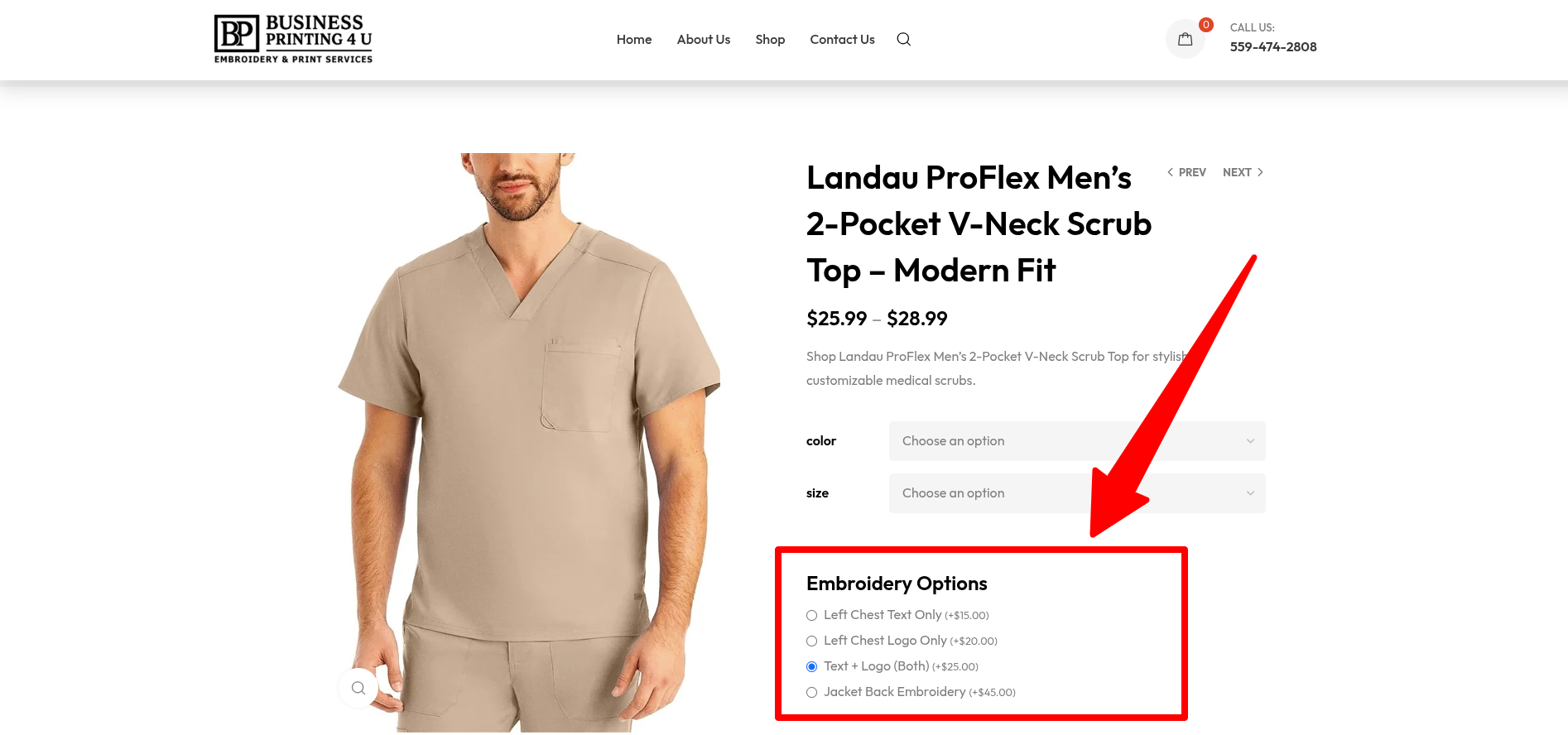
Choose from Embroidery Options

After selecting your color and size, it’s time to customize your item. Choose what you want to embroider:

  • Left Chest Text Only – for text only on the left side.
  • Left Chest Logo Only – for a logo only on the left side.
  • Text + Logo (Both) – for both text and logo on the left side.
  • Jacket Back Embroidery – for embroidery on the back of a jacket.

Step 4 (MOST IMPORTANT)

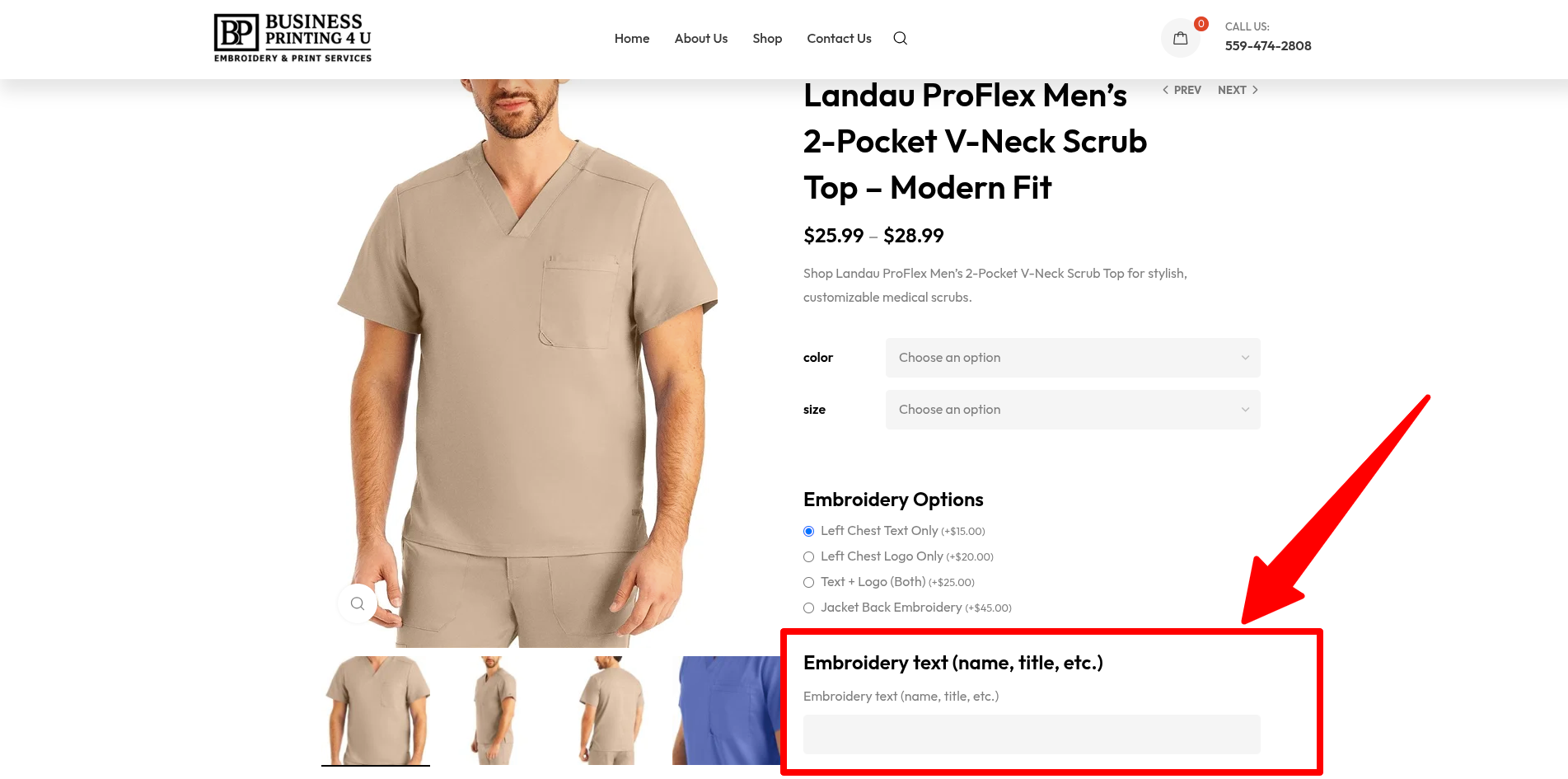
Share Cusomtized Entry (Text/Logo)

If you chose “Left Chest Text Only”, an input field will appear as shown in the screenshot. Simply type the text you want embroidered—this could be your name, title, or any other text.

If you want to embroider a logo, please email us at info@businessprintingforyou.com with your order number after placing your order.

If you want both text and a logo, enter your text in the field on our website, then send your logo to info@businessprintingforyou.com along with your order number after completing your order.

Step 5

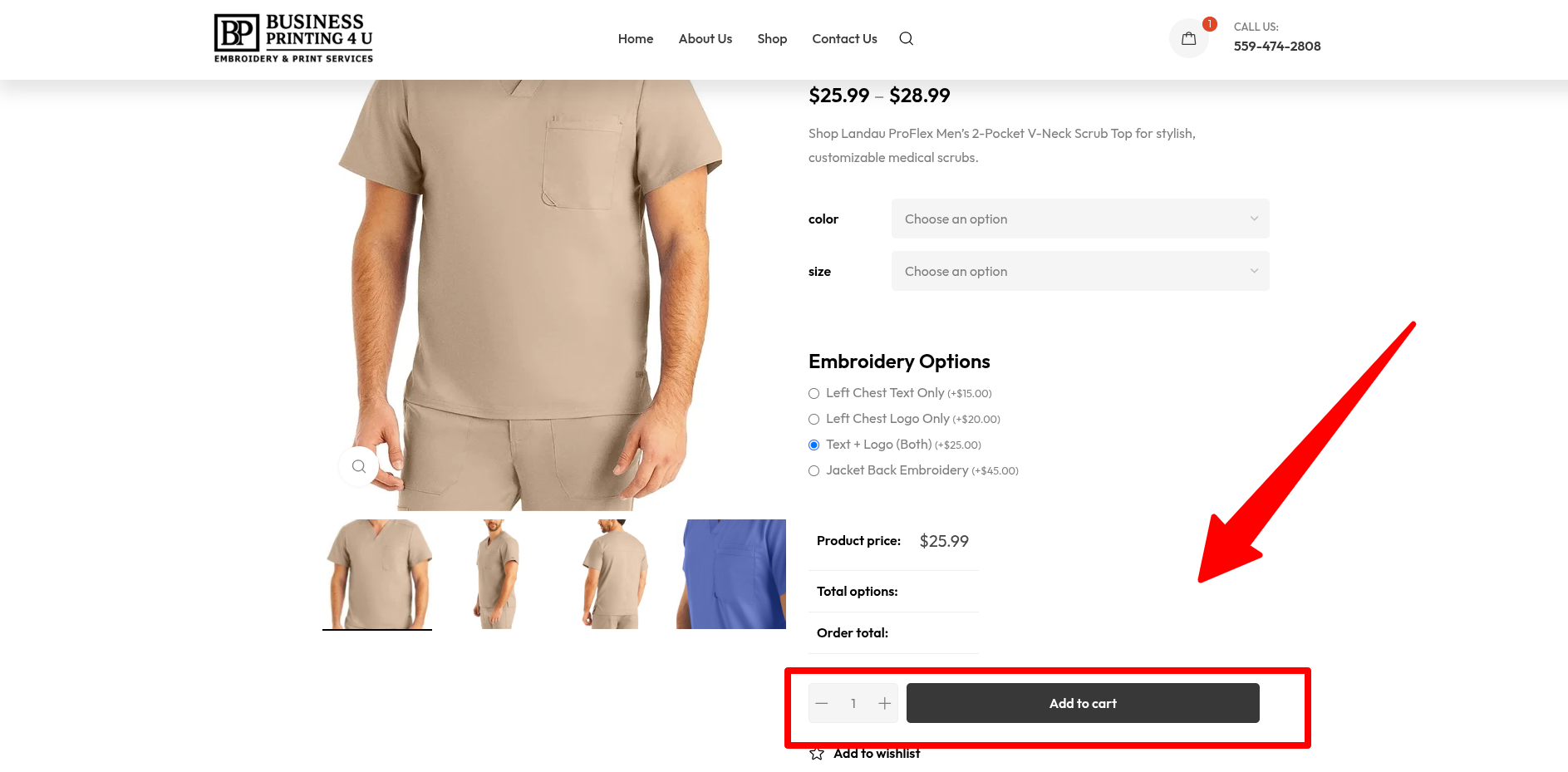
Set Quantity & Add to Cart

Select how many items you want and click Add to Cart to complete your order.

Cart